Beware of

Decorative Image

Resolve issues viewing Panopto videos

How To Resolve Access Issues Viewing Panopto Videos in Canvas

You can't play recordings shared in your Canvas course? Let's troubleshoot.


1. Warning Message: “Panopto is requesting access to your account.” 
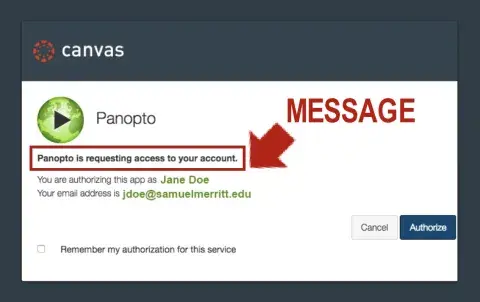
 

Pop up message: Panopto is requesting your authorization to open inside of Canvas


This means Panopto is asking permission to open in Canvas. Grant Panopto permission to open in Canvas. 

Follow these steps: 

1. 
Check “Remember my authorization for this service.”
This message will appear again if you do not check this box.

 2.
Click "Authorize."
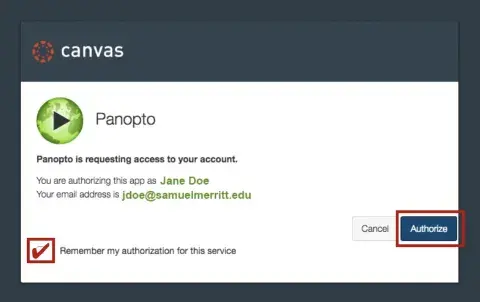
Panopto: "check "remember my authorization" and click "authorize."

This message will appear again if you do not check this box. 

To make hidden prompts visible when above window (screenshot above) is too small, Place the cursor over the video window and scroll towards the bottom. Then, scroll toward the right.
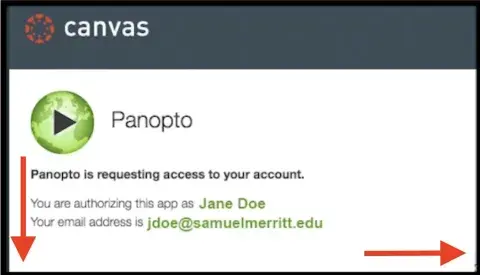
Panopto: scroll to access the "authorize" and "remember authorization"


3. 
Refresh your web browser and play the video.
You can play the video within Canvas, or click on the “Expansion Arrow” to play in a separate window.
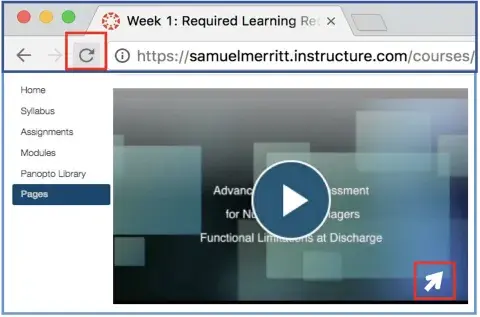
Panopto: Refresh and play the video. Click the diagonal arrow to open in the Panopto viewer

2. Warning Message: “You do not have access to this. Request Access.”
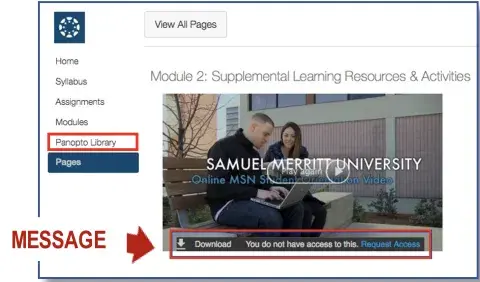
 

Panopto: Warning message:“You do not have access to this. Request Access.”


This means you have not activated your Panopto, or Panopto is not recognizing you as a member of the the course group. Activate your account and make you a member of the course group in Panopto. 

Follow these steps: 

1.
Click on the Panopto Library tab in your Canvas course.

By clicking on the Panopto Library tab, your user name will be recognized every time you access videos in your Canvas course.

This will open the Panopto library within Canvas.

2.
Refresh your web browser.
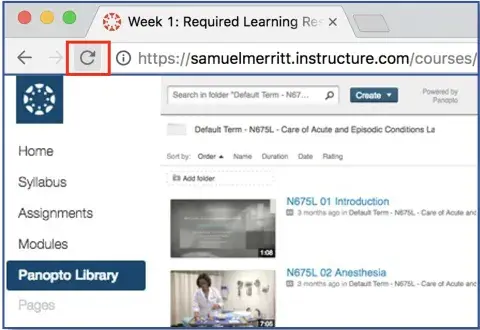
Panopto: Refresh browser landing in the Panopto Library tab for the course.

If you don’t see any videos in the Panopto Library, they are stored in another Panopto folder.

3.
Return to the Canvas page that contains the video.

You can play the video within Canvas, or click on the ”expansion Arrow” to play in a separate browser window.
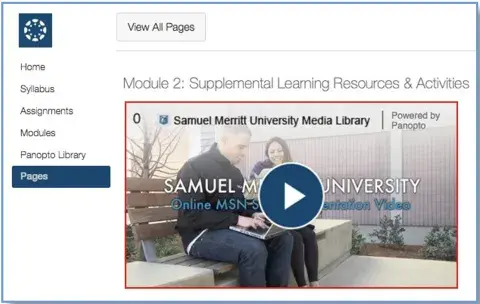
Panopto: Play the recording


OUR CAMPUSES

Prepare for a career that makes a difference. Explore programs, connect with admissions, and take the next step toward becoming a healthcare professional.
View of the SMU Oakland Campus

Oakland

525 12th St.
Oakland, CA 94607

800.607.6377

View of the SMU Sacramento Campus

Sacramento

2710 N. Gateway Oaks Dr.
Suite 360
Sacramento, CA 95833

800.607.6377

View of the SMU Fresno Campus

Fresno

1791 E. Fir Ave.
Fresno, CA 93720

800.607.6377

View of the SMU San Francisco Peninsula Campus

San Francisco Peninsula

999 E. Hillsdale Blvd.
Foster City, CA 94404

800.607.6377

A student takes SMU program online.

Online Programs

admission@samuelmerritt.edu

800.607.6377

Job Scam Warning

We have been made aware of fraudulent job postings and offers that may appear to come from Samuel Merritt University. Please note:

  • All legitimate job postings are listed exclusively on our official Careers page.
  • Our recruiters will always contact you from an @samuelmerritt.edu email address. We do not use personal email accounts.
  • We will never ask for payment, banking information, or personal identification documents as part of the hiring process.
  • If you are unsure about the legitimacy of a job posting or communication, please contact us directly at recruiting@samuelmerritt.edu.

We take these scams seriously and are working with authorities and online platforms to remove fraudulent listings. If you believe you have been targeted, we encourage you to report the incident to the FTC (in the U.S.) or your local authorities.