
Canvas discussions with video
You can use video for your Canvas Discussions. Learn about five methods for recording, uploading, and posting replies.
There are different methods for recording videos; however, A&II recommends using Panopto Capture for recording. To choose the method that is most suitable, see the options provided in the accordions below.
After recording, student must still do the following:
- Record the video in your app choice.
- Upload the recording to Panopto (to the course Panopto “Assignments Folder.)
- Open your Canvas course.
- Click the Panopto Library in the course navigation.
- Find your course Panotpo [Assignment Folder].
- Click Upload. You can close the Panopto window when you see the green checkmark and the word "Processing.
- Submit the Panopto video in the Discussions Assignment.
- Open the Discussions Assignment in Canvas.
- Click the "Reply" or "post" button.
- Then, Insert the Panopto video you just uploaded.
- In the Rich Content Editor, select the Green Panopto icon.
- Click "Choose" to find the recording you just uploaded.
- Select the recording.
- Click Insert.
- Select the recording you just uploaded.
- Then, Click "Insert" in the Discussions Post.
- Finally, click "Post." to officially submit the Reply or fresh Post for the Discussions Assignment.
Click the accordion for different methods (and tutorial with graphics) for recording and submitting a Discussions post or reply.
Add a "post" or "reply" - Record with Panopto Capture (recommended)
Methods for "recording" videos for Canvas Discussions
Record with Panopto Capture in your browser
Use Panopto Capture to record a video “post” or “reply” in Canvas “discussions.” Panopto Capture is a web browser recorder. It's user-friendly and is accessible straight from your Canvas course. The videos are saved in the course assignment folder, in Panopto. After recording the video, access the Canvas discussions, insert the video, and submit the post or reply.
Considerations for Recording new videos
- Begin by planning your video and evaluate your resources. See best practices for recording videos.
- Choose the the video recording tool best suited for your project. Panopto may or may not be the best solution for recording your video, so the video recording tools you are familiar with may be the best start.
This tutorial consists of two parts:
1. Record with Panopto Capture.
2. Insert a "Post" or "Reply" in Canvas “Discussions.”
(1) Record Canvas discussions with video: Use Panopto Capture
- Open your Canvas course.
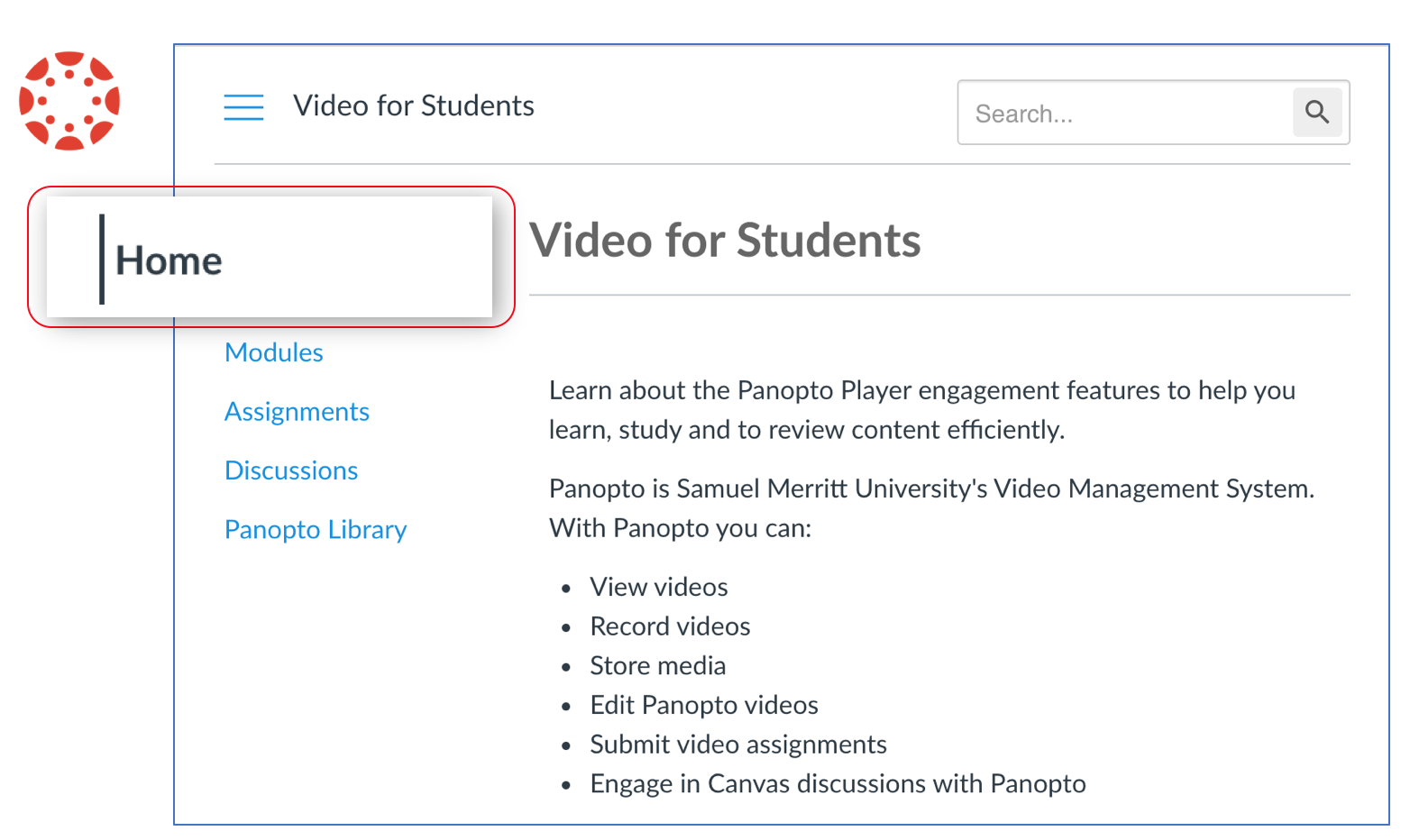
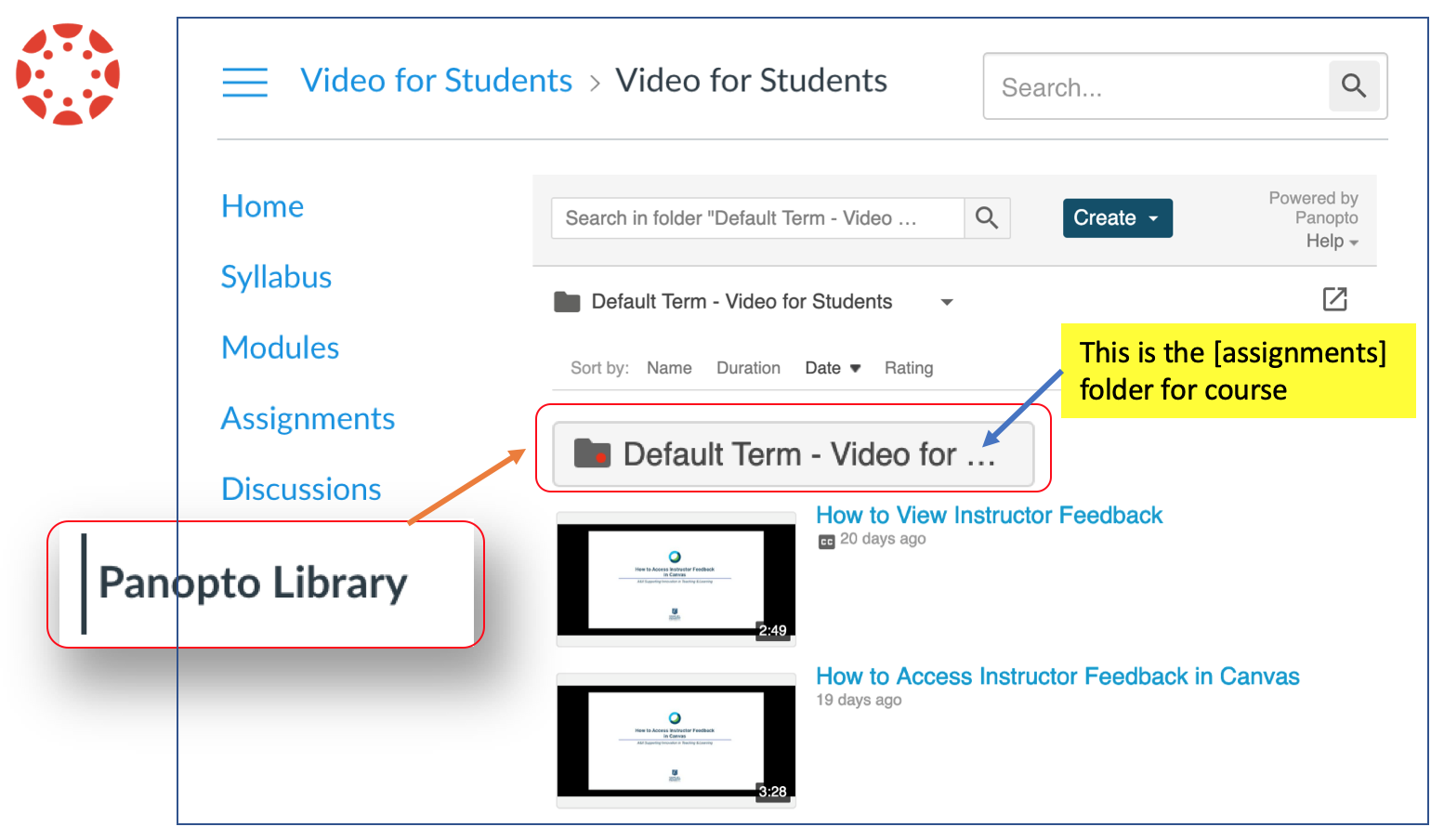
- Click the "Panopto Library" tab, then click the Panopto [assignments] folder for the course.
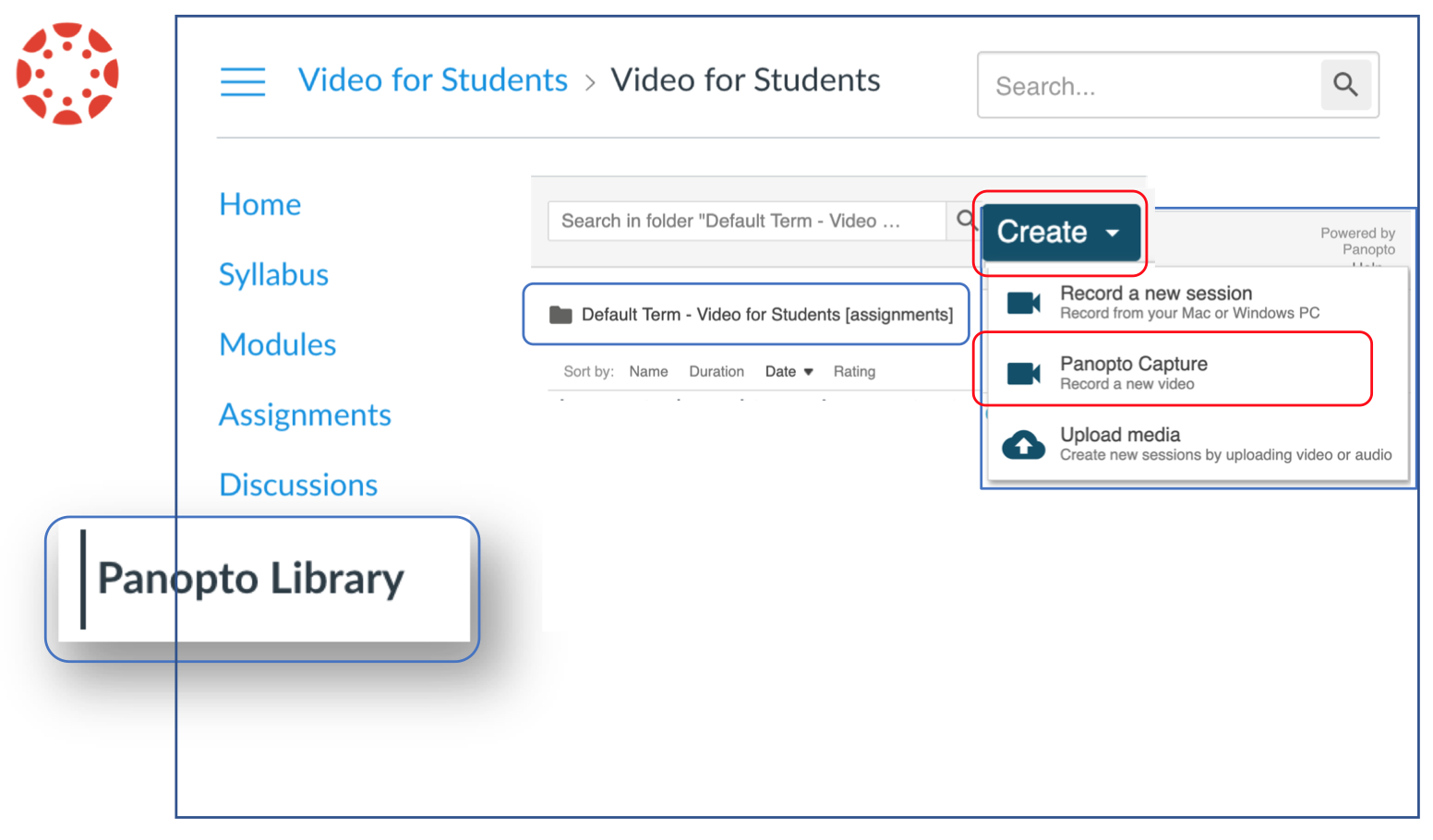
- Click the "Create" tab, and choose "Panopto Capture."
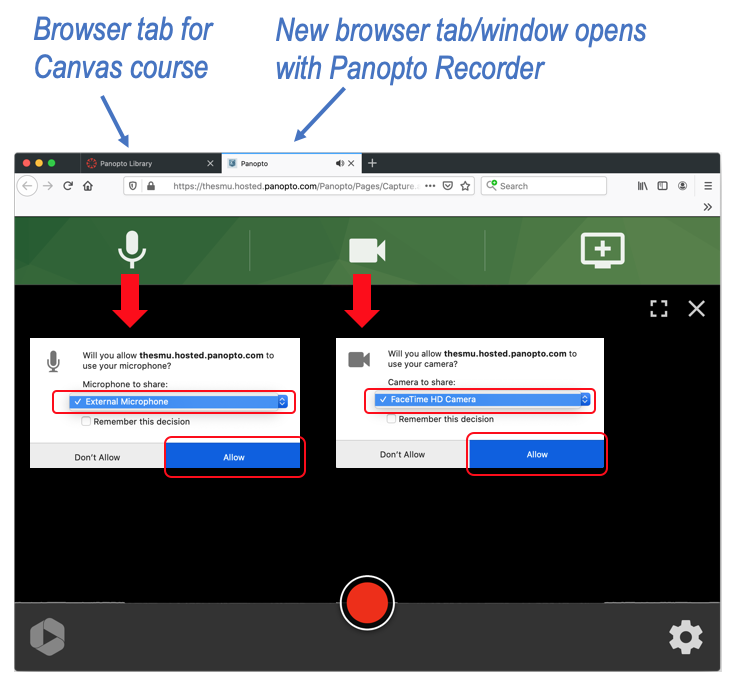
For recording video+audio only, enable the mic and webcam. Depending on the browser you will either:
a) click "Allow".
b) Or, select the "mic" and "webcam" icons to enable.You're now ready to record video and audio only.
You are now ready to record video and audio only.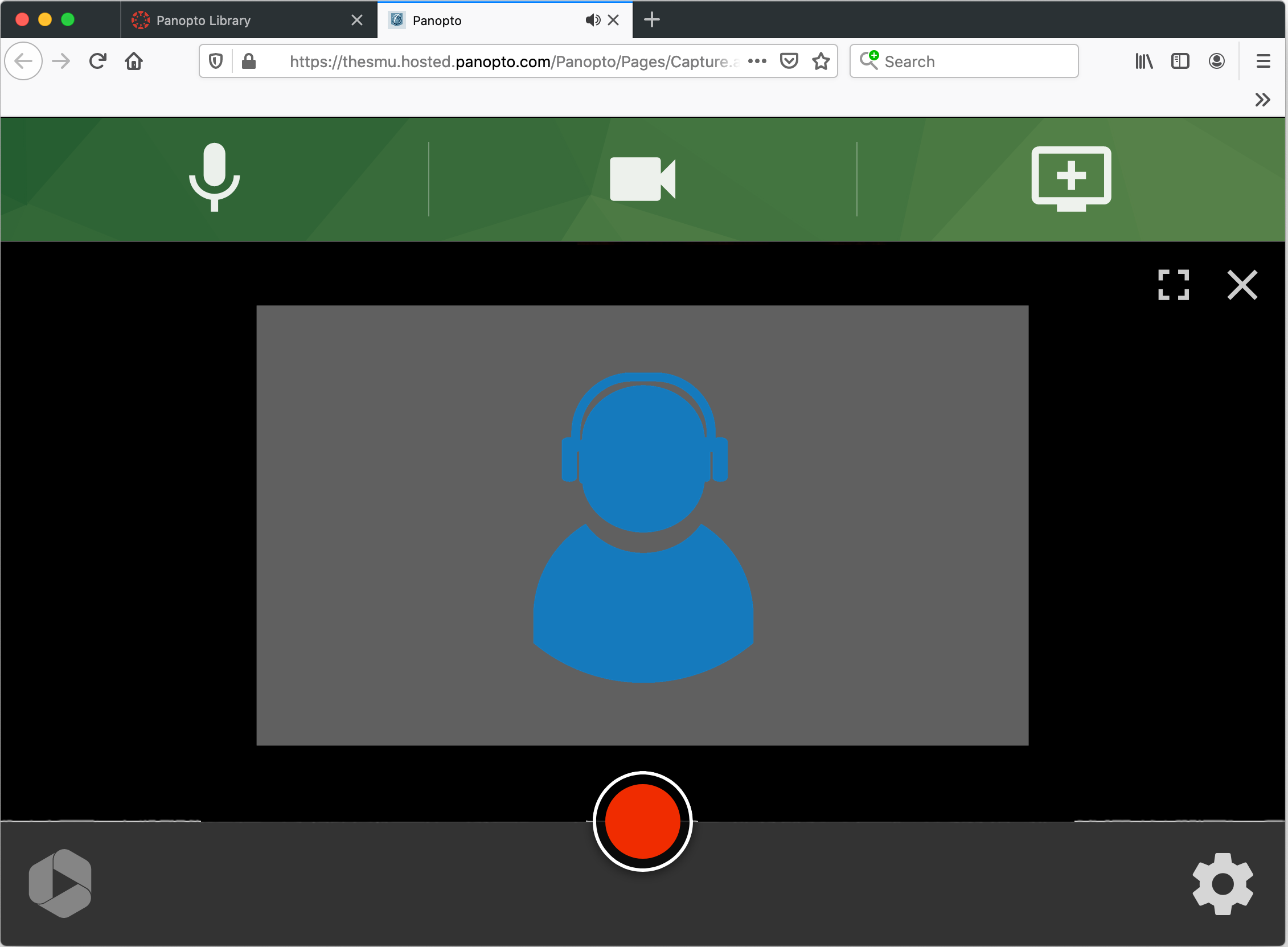
- Click "Record" to start recording. (smile and wait 5 seconds before you start talking).

Click "Stop" to end the recording. (smile and wait 5 seconds before you click stop).
.
Don’t close the browser tab while the recording is uploading.- While you wait for the video to upload, do this:
- Type the "title" of your video.
- Make sure the video is stored in the Panopto [assignments] folder for your course. If not, click the Panopto folder pulldown arrow and select the correct course Panopto folder.
- Wait until you see the "it's okay to close" prompt appears above green status bar . The "okay" means the video is fully uploaded. You can also close the browser if “putting in the final touches” is displayed.
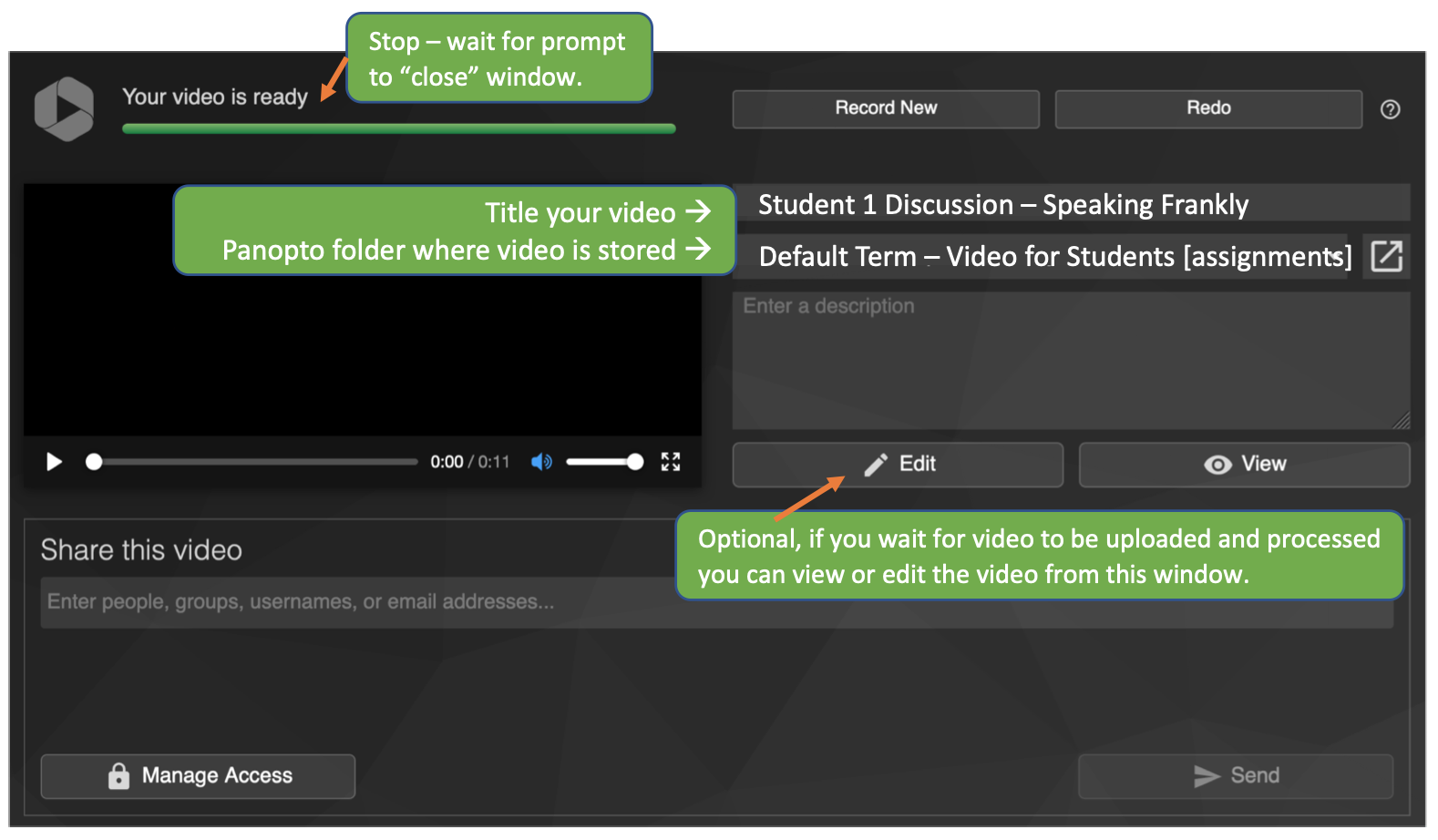
The recording will be stored in the course Panopto folder, in the Assignments folder.
Canvas course -> "Panopto Library" tab -> “Assignments” sub-folder.
- Type the "title" of your video.
(2) Insert a “Post” or “Reply” in Canvas “Discussions”
- Open the Canvas course.
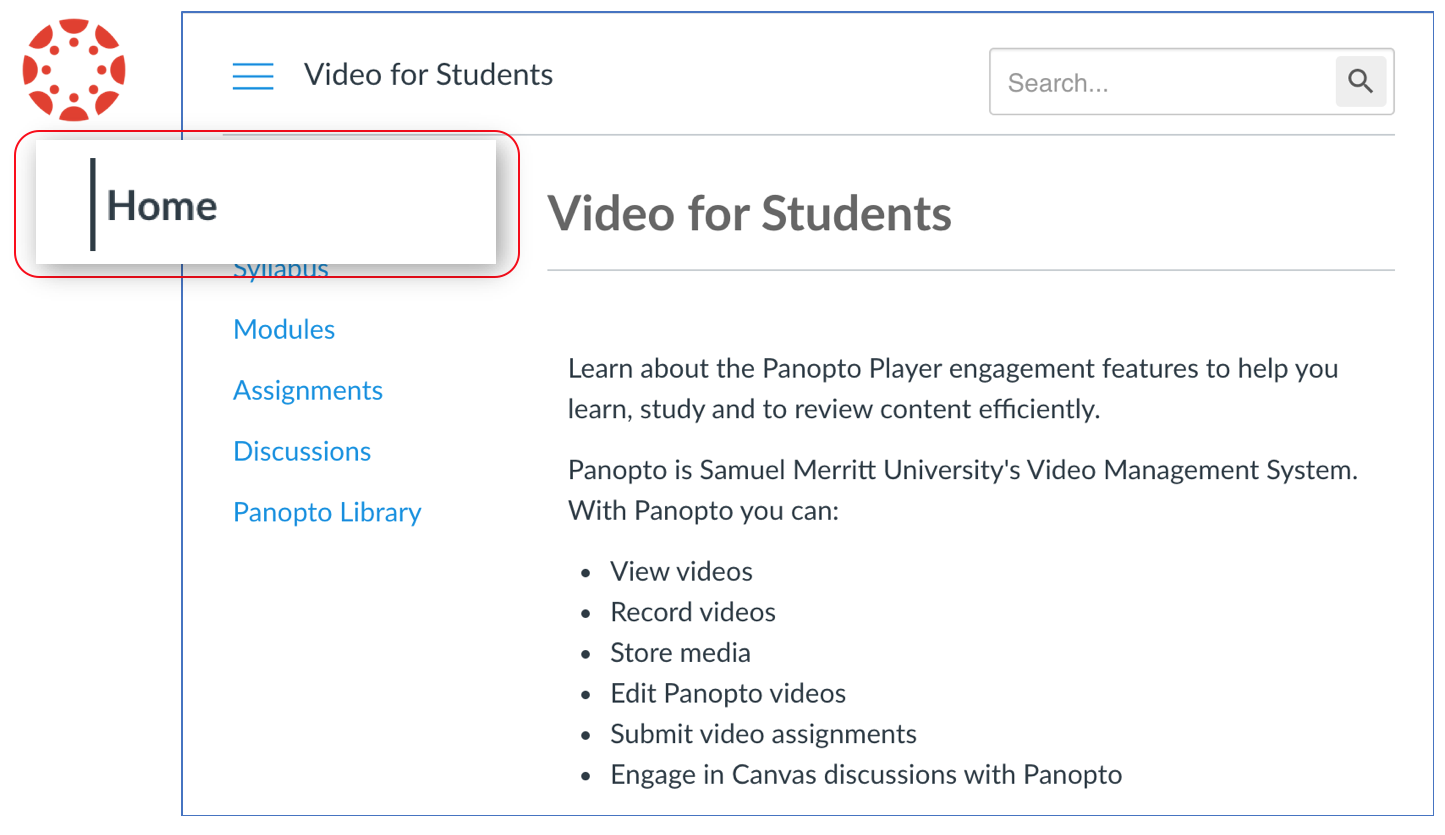
- Open the "Discussions" assignment and click "Reply". (You can reply to the original post. Or, you can reply to someone's post).
(Note: If you do not see the "Discussions" Canvas tab, access the discussion assignment in Modules.)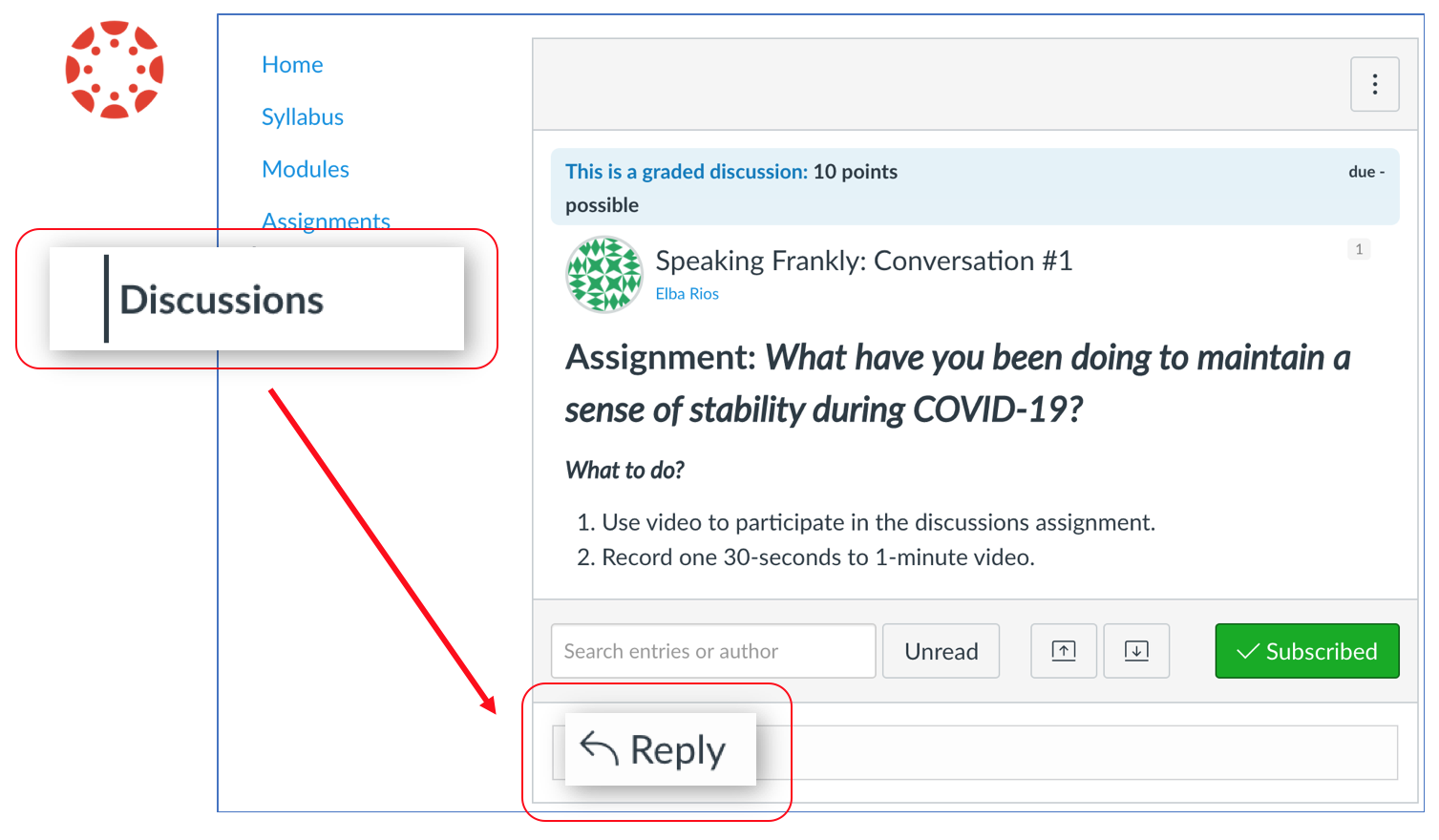
- In the Rich Content Editor select the green Panopto icon.
(Note: If the Panopto icon is not visible, click the three dots to reveal the hidden options.)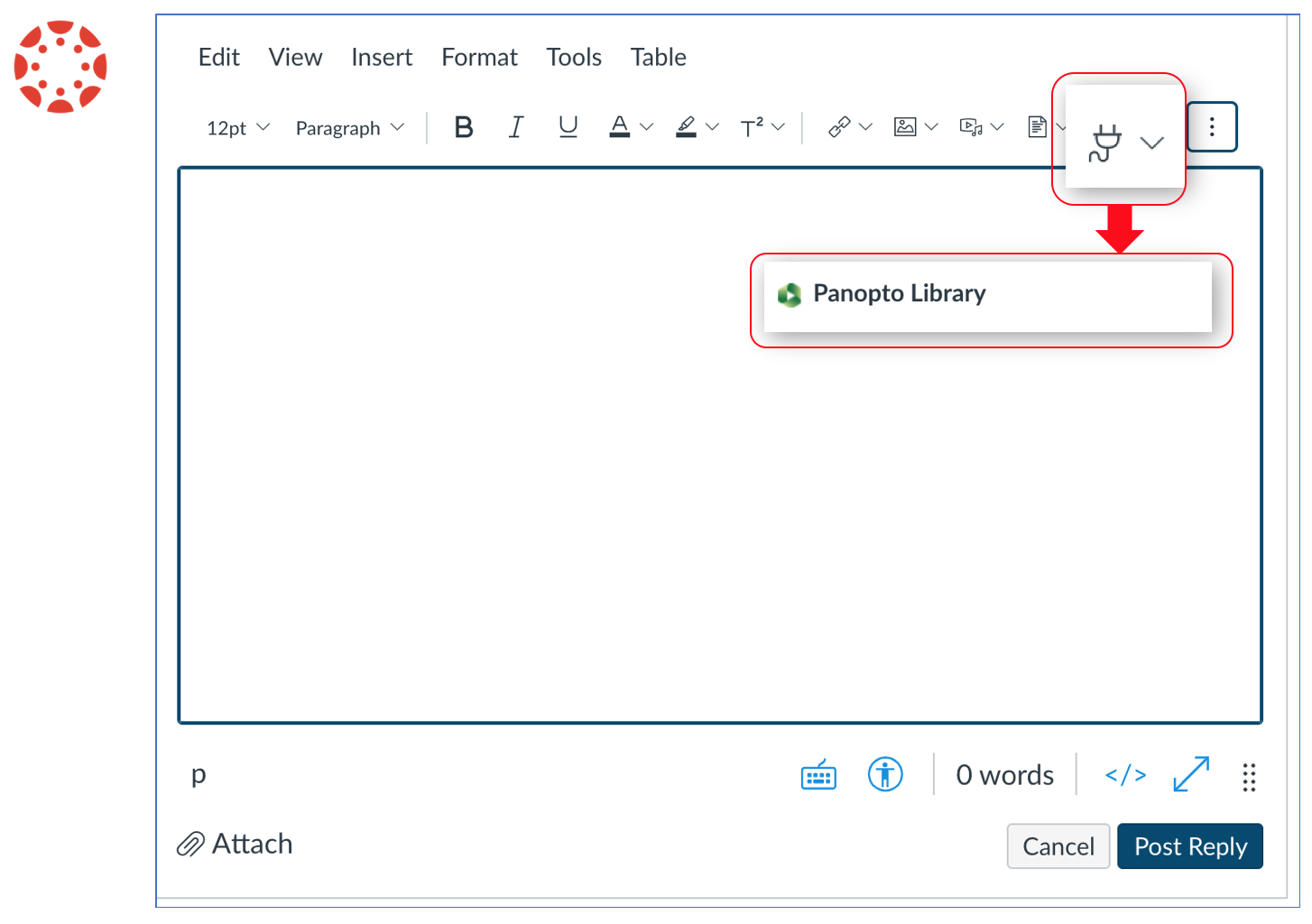
- Select the "Choose" tab, then click "Everything" field to search the Panopto Folder where you stored the recording. You can click the pulldown arrow to reveal folders, or you can type the official course name.
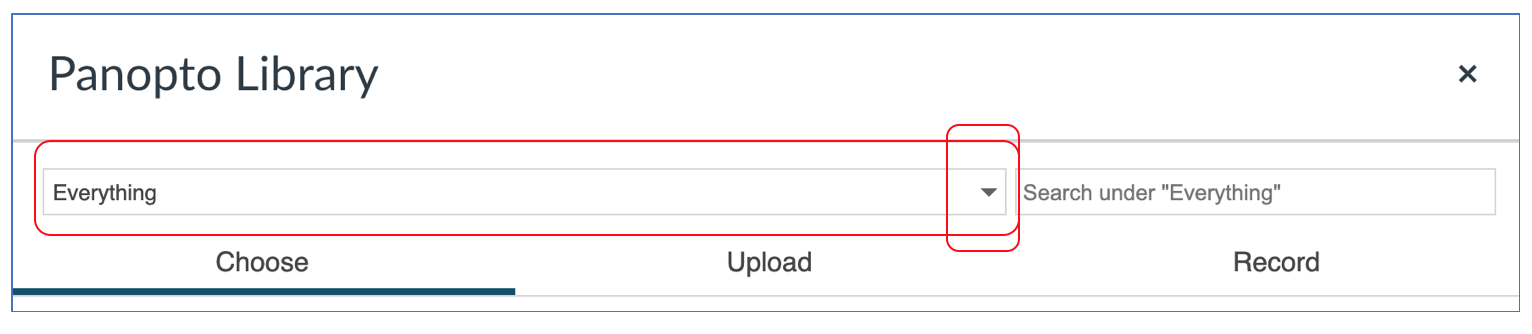
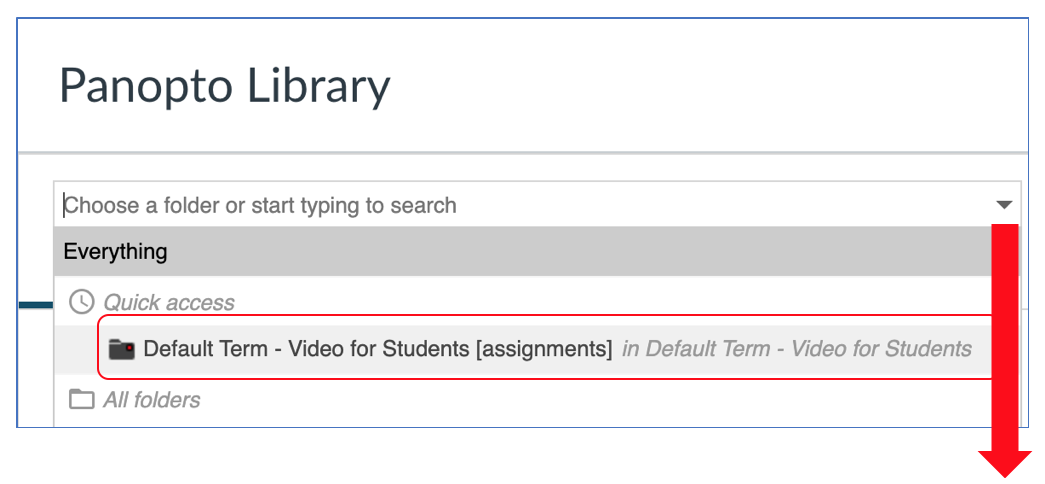
- Select the Panopto Assignments folder for the course. Notice "assignments" is written in "[ ]" brackets.
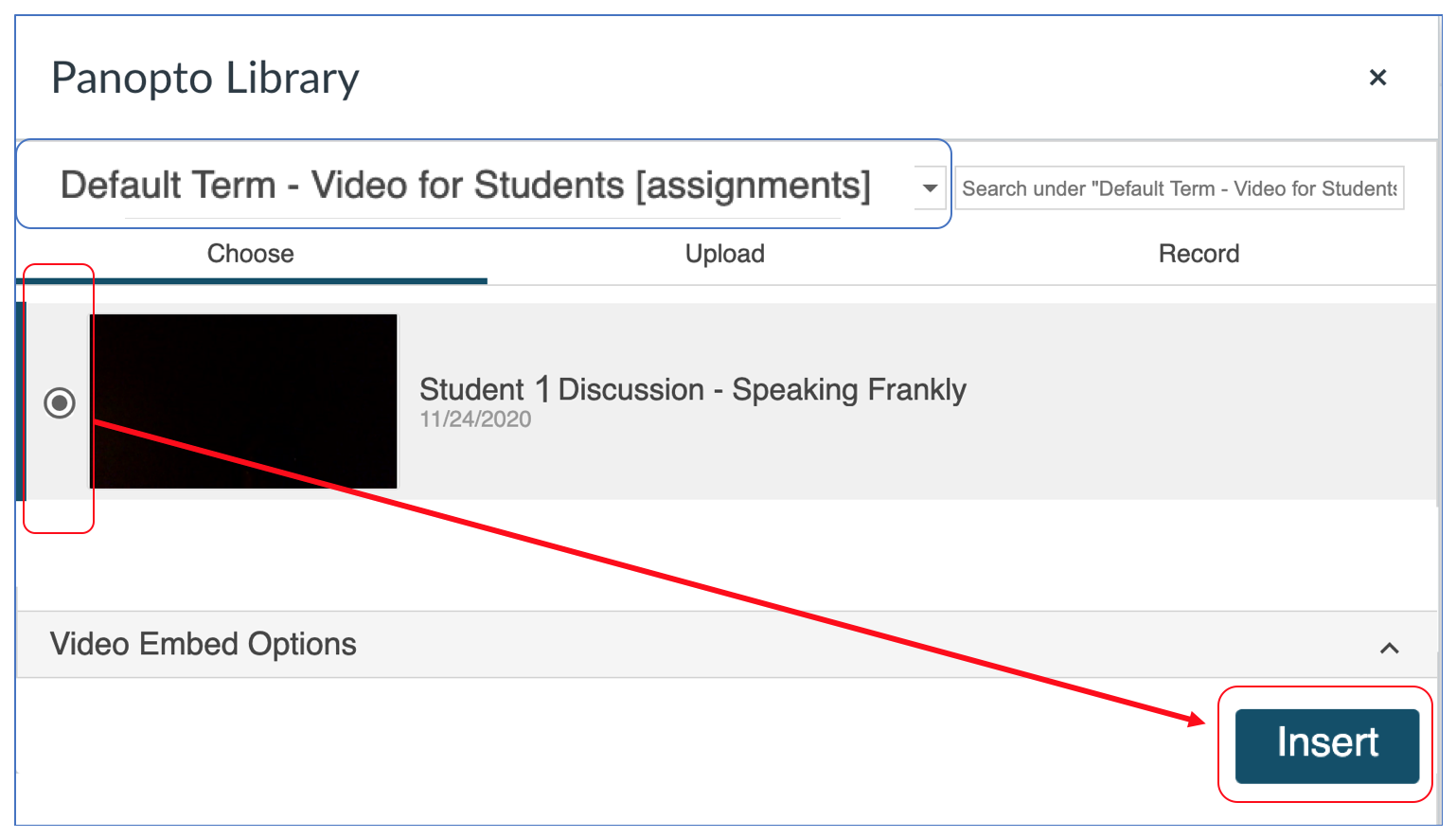
- Select the video, then click "Insert".
- Click "Post Reply".
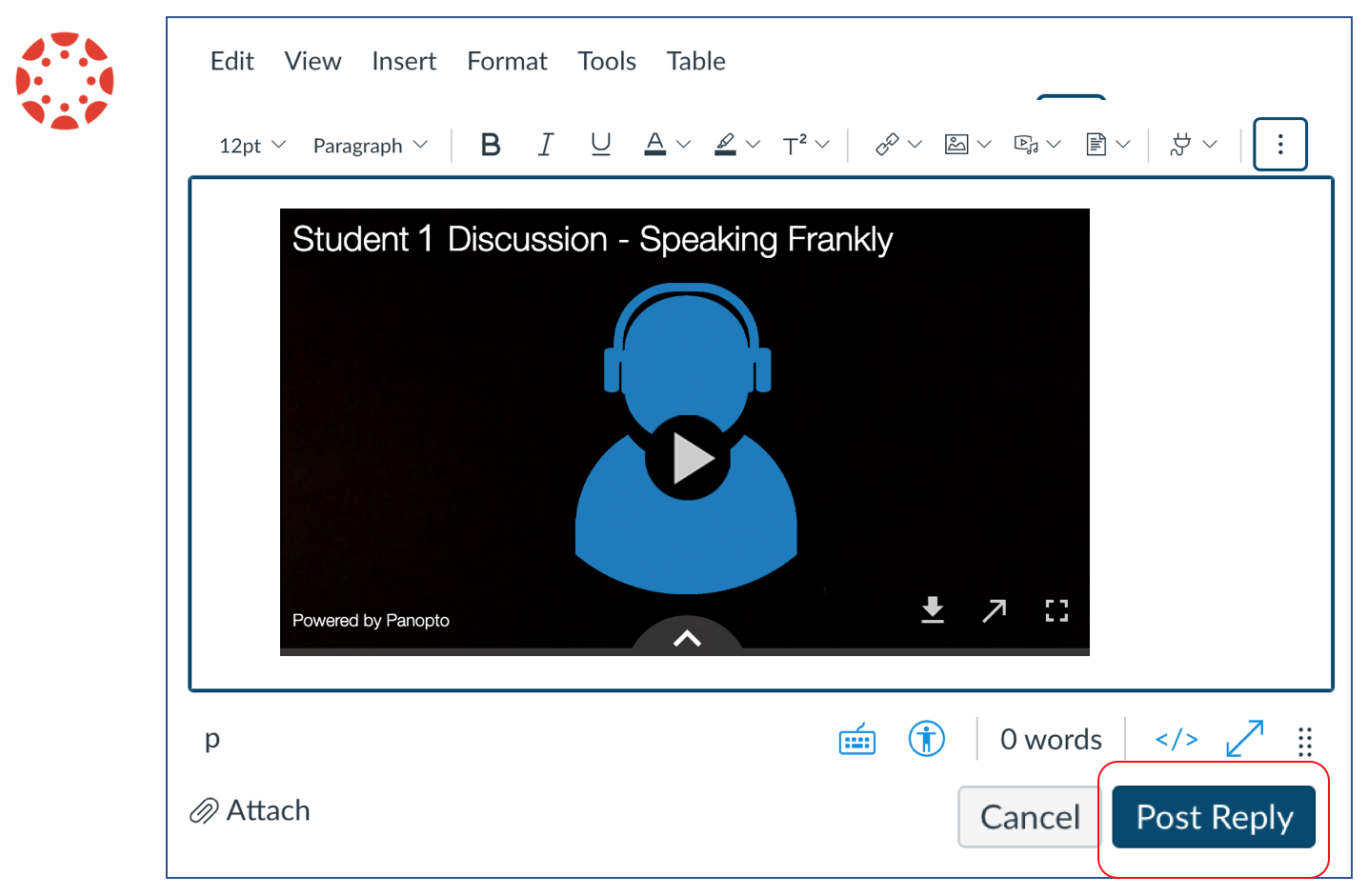
- Preview the reply in the discussions assignment to verify your video reply has been posted.
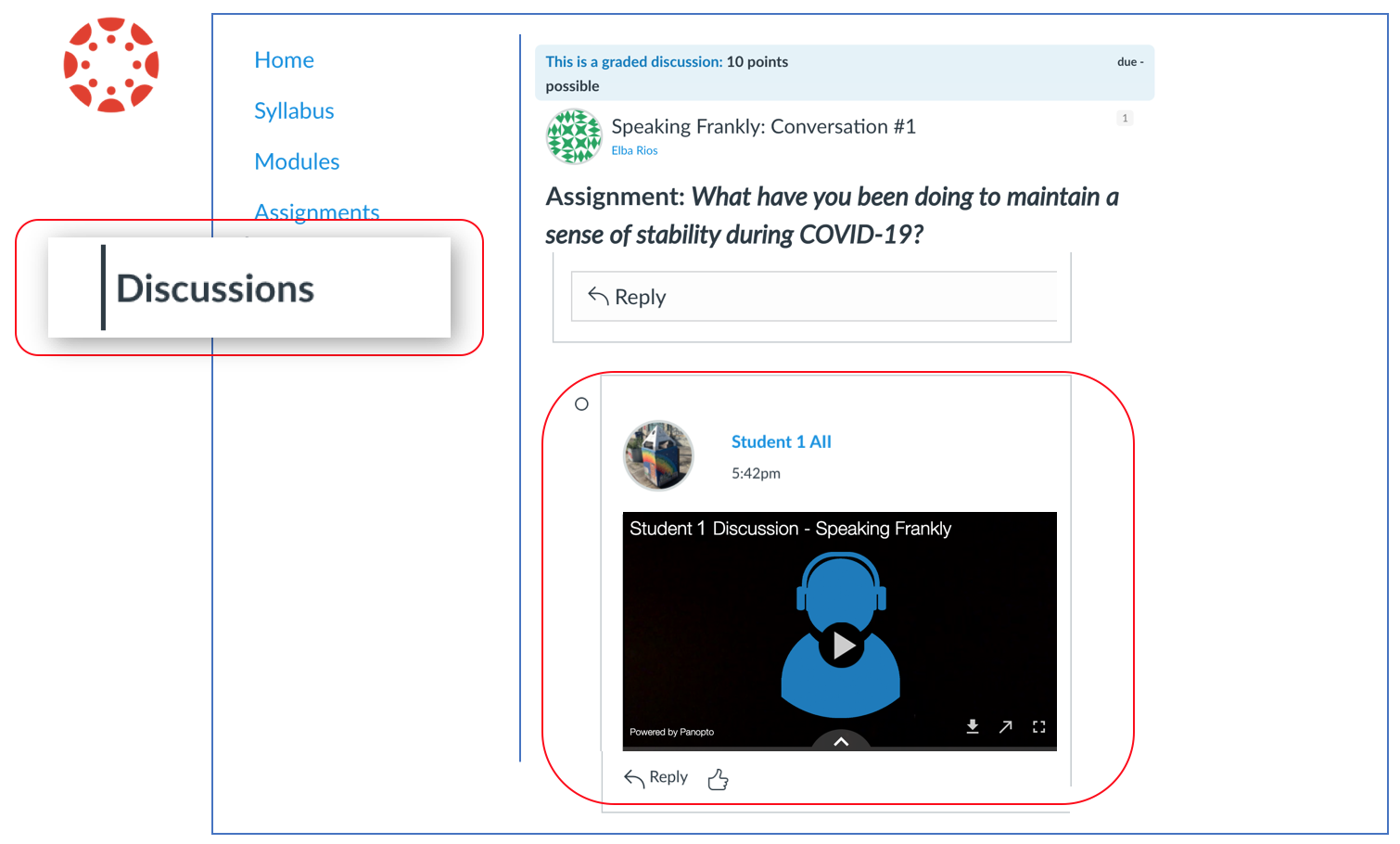
Add a "post" or "reply" - Recording is stored in Computer
In this tutorial, you'll learn how to upload a video from your computer or other devices, and how to post a "Reply."
(***If your recording is stored in your mobile device, see the tutorial for uploading and submitting from iOS devices.)
Video is stored in the Computer.
- Log in to Canvas.
- Open your Canvas course.
- Open the Discussions assignment.
Click "Reply"
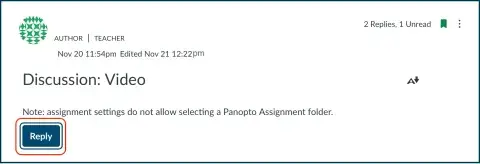
Choose the Panopto Library media option in the Rich Content Editor. (If not visible, click the three lined dots to reveal the "plug icon". Follow the purple line below.)

- Choose the assignments folder for your course by clicking the dropdown menu.
Make sure to choose the folder displays "[....... Assignment Folder].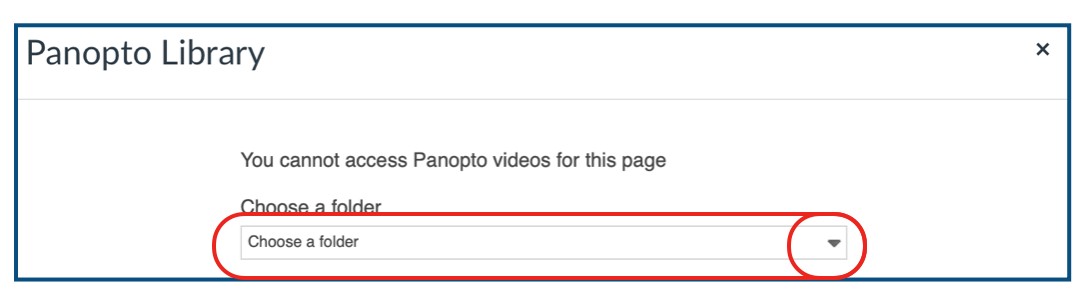
The “Quick access” list displays all the assignment folders you’ve accessed recently.
The “All folders” list displays the assignment folder for each course you’re enrolled in (past or present).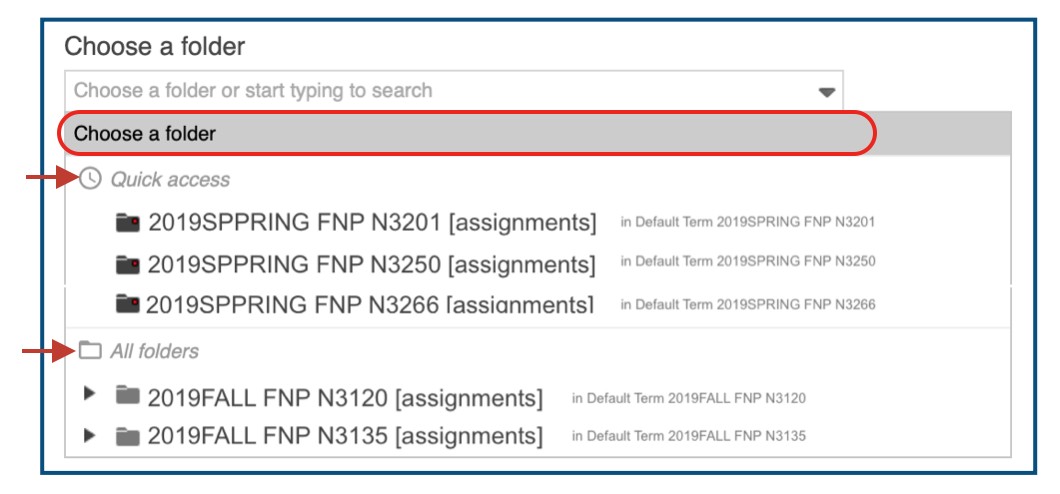
- Click “Upload”
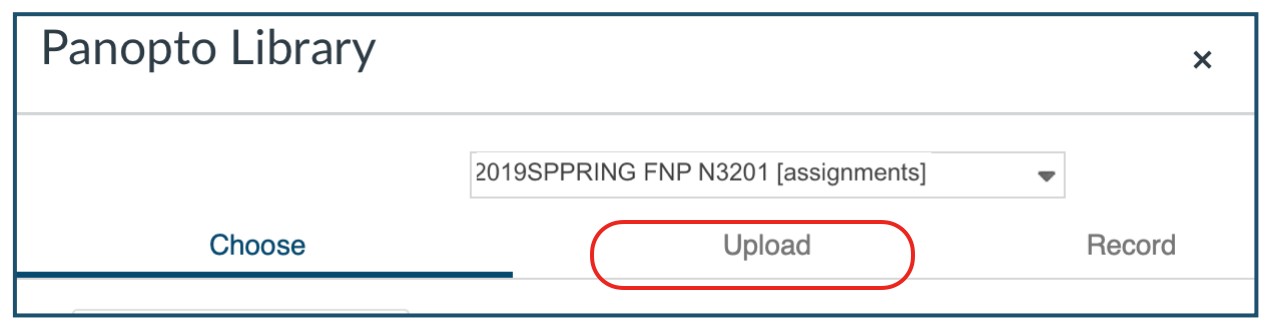
- Click “Choose video or audio files,” browse your computer’s files, and select your video:

- After the video has been uploaded, you'll see a “Processing media” message.
When the “Insert” button appears, click it to send your video to Canvas: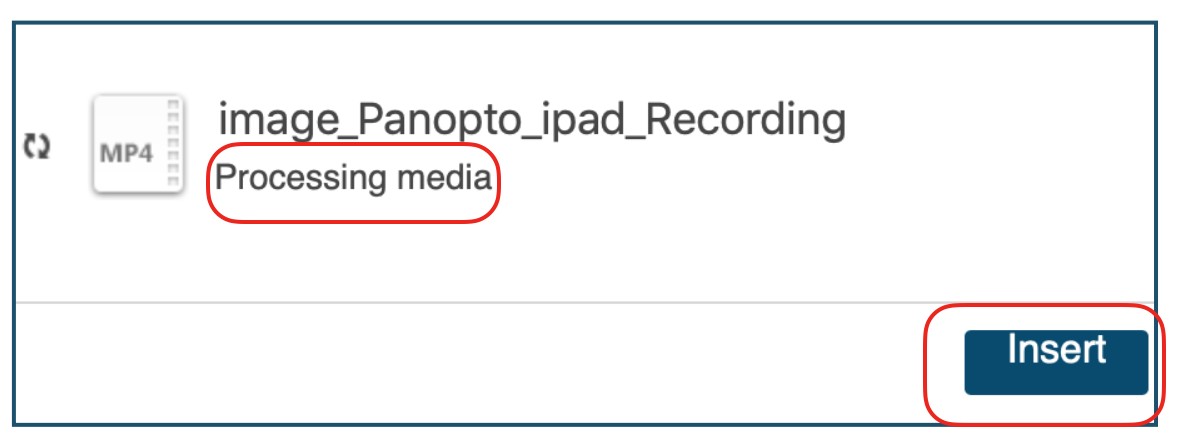
- Click "Reply."
Add a "post" or "reply" - Recording is stored in Panopto
Add a "post" or "reply" in Canvas Discussions. The recording is stored in Panopto.
You already uploaded the recording in the course Panopto Assignment folder. Now, follow these steps:
- Open the Canvas course.
- Open the "Discussions" assignment and click "Reply". (You can reply to the original post. Or, you can reply to someone's post).
(Note: If you do not see the "Discussions" Canvas tab, access the discussion assignment in Modules.) - In the Rich Content Editor select the the plug icon, and then choose the "Panopto Library" option.
(Note: If you do not see the plug icon, click the three line dots to reveal hidden options.) - In the "Choose" mode, click "Everything" to find the Panopto Folder where your video is stored. You can click the pulldown arrow to reveal folders, or you can type the official course name.
- Select the Panopto Assignments folder for the course. Notice "assignments" is written in "[ ]" brackets.
- Select the video and click "Insert".
- Click "Post Reply".
- Preview the reply in the discussions assignment to verify your video reply has been posted.
Add a "post" or "reply" - Record with the Panopto app in your computer
Add a "post" or "reply" - Record with the Panopto app in your computer
- Install the Panopto App on your computer. (PC computer) (Mac computer)
- Record the Video
- Configure the Panopto Recorder settings (STRAIGHT UP TALK - VIDEO/AUDIO ONLY)
- (Text guide for PC, scenario 2) (Video guide for PC)
- (Text guide for Mac, scenario 2) (Video guide for Mac)
- Configure the Panopto Recorder settings (STRAIGHT UP TALK - VIDEO/AUDIO ONLY)
- Store the recording in Panopto -- in the [Assignments] folder for the course.
- Insert and submit your “post” or “reply.”
Insert a “Post” or “Reply” in Canvas “Discussions”
- Open the Canvas course.
- Open the "Discussions" assignment and click "Reply". (You can reply to the original post. Or, you can reply to someone's post).
(Note: If you do not see the "Discussions" Canvas tab, access the discussion assignment in Modules.)
- In the Rich Content Editor select the green Panopto icon.
(Note: If the Panopto icon is not visible, click the three dots to reveal the hidden options.)
- Select the "Choose" tab, then click "Everything" field to search the Panopto Folder where you stored the recording. You can click the pulldown arrow to reveal folders, or you can type the official course name.
- Select the Panopto Assignments folder for the course. Notice "assignments" is written in "[ ]" brackets.
- Select the video, then click "Insert".
- Click "Post Reply".
- Preview the reply in the discussions assignment to verify your video reply has been posted.
Add a "post" or "reply" - Record and Post with Mobile Devices
Add a "post" or "reply" - Record and Post with Mobile Devices (iOS or Android)
[Access the tutorial with images]
Students can use mobile devices to record videos for Canvas discussions. You can record, post and reply in discussion with video. Follow these steps:
- Record the video with iOS or Android native app. The recording will be saved in the image/video gallery.
Tip: The camera viewfinder is always at the top. Hold the mobile device horizontally.
- Cinematic/wide angle format provides more frame coverage.
- This is not a social media recording.
- Your teacher will most likely be viewing videos on a computer screen.
Videos recorded in portrait format produce a larger file size, and lots of wasted space.
For discussions, Record in one take! If you record multiple video clips, you will have to edit and export a final video (.mp4 format).
- Open your Canvas course on your mobile device, after complete the recording, (Use the website version, NOT the 3rd Party Canvas App!)
- Access the discussions assignment.
- Tap Reply on the main post, or on a student post.
- Place the curser where you'd like to insert the video, and select the Panopto icon (green graphic) in the Rich Content Editor to insert video.
- Choose Panopto [Assignments] folder for the course. To find:
- Tap the Everything field, or click the pulldown arrow next to “Everything”.
- Type the name of the course, or scroll down the folder list.
- Tap the “arrow” pointing to the right (for your course) to reveal sub-folders, and select the [assignments] folder for the course. You’ll see assignments in brackets.
- Select Upload.
- Tap Choose video or audio files.
- Select the video from the photo gallery/library. Do not turn off the device or shut until the video is fully uploaded.
- Android: Files -> Select the video
- iOS: Photo Library -> Select the video -> tap Done -> tap Use (and wait for the recording to compress and upload)
STOP. DO NOT SHUT DOWN YOUR MOBILE DEVISE WHILE THE FILE IS UPLOADING. The time it takes to upload a video depends on the duration and size of the file, and Internet bandwidth. This is what it looks like when the video is uploading.
- Tap “Insert” when it option appears at the bottom of the window.
When the video is fully uploaded, it will begin to “process” immediately in the Panopto cloud. The “Insert” button will then become visible.
Scroll down the window to to access and Insert button. You do not have to wait for the processing to complete. It will continue to process and publish in the cloud.
While the video may not be ready for viewing, it’s okay to tap ”Insert.”
- Tap Post Reply.
“Post Reply” even if the video displays, “This video is not ready yet”.
As soon as the video is fully processed and published in the Panopto cloud, it will become automatically available for viewing in the discussion.
Add a "post" or "reply" - Record with the app of your choice
Add a "post" or "reply" - Record with the app of your choice
- Record with the recording app of your choice.
- Store recording in your device.
- Then, upload the recording to Panopto and "Reply."
Follow the steps in the section above, "Add a "post" or "reply" - Recording is stored in Computer" (or device)
Add a "post" or "reply" - Record with Canvas Media
Record and Submit using Canvas Media.
STOP! Only use Canvas Media if your teacher makes this option available. Canvas Media has time and file size limitations. It is an option for shorter videos (1-3 minutes long).
- Open the Discussion.
- Click, "reply" or "post" and record the video using Canvas Media
- Record media using the Rich Content Editor
- Use the webcam with Canvas to take a photo/video (with Assignment Enhancements)
- Submit a media file (with Assignment Enhancements)
- Submit a media file
- Click "Post" to finalize embedding and submission of post or reply.